
A site can look stunning and convert very little. Another can look plain and still generate leads consistently. The difference almost always lies in UX design — in the User Experience, the experience users have as they browse, read, understand and decide. Visual design attracts; UX design guides. And guiding users towards the desired action is the most important job of any digital interface.
In this guide you'll find the fundamental UX design principles that apply to any kind of interface in 2026 — websites, web apps, landing pages, e-commerce — with concrete examples and practical criteria for assessing and improving your existing interfaces.
Sources: Lindgaard et al. (2006); Stanford Web Credibility Project (2002); Google/DoubleClick (2016)
What UX design is — and what it isn't
User Experience (UX) design is the discipline that designs a user's overall experience when interacting with a digital product. It isn't just aesthetics — that's UI (User Interface). It isn't just functionality — that's the domain of development. UX is the synthesis: how easy the product is to use, how clear the path to the goal is, how satisfying the interaction is.
An interface has good UX when users can achieve their goal without frustration, without doubt and without having to think too hard. The core principle, formulated by Steve Krug in 2000 and still valid in 2026: "Don't make me think". Every moment of uncertainty, every unintuitive click, every piece of information that's hard to find is friction — resistance that lowers the likelihood of the user completing the desired action.
UI (User Interface design) deals with the visual side: colours, typography, icons, spacing, animations. UX deals with how things work: information architecture, navigation flows, content hierarchy, friction reduction, accessibility. In practice they overlap all the time — a good designer knows both — but conceptually they are distinct disciplines with different tools.
The 7 fundamental principles of UX design
1. Visual hierarchy
Visual hierarchy is the arrangement of visual elements in order of importance, so that the user's eye is naturally led from the most important element to the least. It isn't an abstract concept — it's the reason some sites "read" smoothly while others feel chaotic even with the same content.
The tools of visual hierarchy: size (larger elements draw attention first), contrast (the CTA needs maximum contrast with the background to catch the eye), white space (empty space around an element makes it stand out — it isn't wasted space), colour (a single accent colour on a neutral background immediately directs attention), position (in Western cultures the eye follows an F or Z pattern — top-left and central positions carry more visual weight). Every page needs one main element that grabs attention first — if everything is important, nothing is.
2. Reducing friction
Friction is any obstacle that slows down or discourages users from completing the desired action. It can be cognitive (too many options to weigh up), technical (a form with 12 fields when 3 would do), emotional (fear of making a mistake, uncertainty about privacy) or physical (buttons too small on mobile). The UX designer's job is to systematically identify and remove every point of friction along the user journey.
Practical examples of reducing friction: one-click checkout instead of 5 steps, smart autofill in forms, showing the total number of steps in a long form ("Step 2 of 3"), error messages that explain how to fix the problem (not just "required field"), automatic saving of entered data, letting people register after rather than before completing an action.
3. Consistency and familiarity
Users arrive on your site with expectations built on millions of hours spent using other sites. Convention beats creativity in UX. The logo top left that leads to the homepage, the navigation menu at the top, the cart top right, the footer with useful links: these conventions exist because they work. Breaking them without a very good reason creates friction and confusion.
Internal consistency matters just as much: colours, typography, icons, spacing, tone of voice and the behaviour of interactive elements must be consistent across the whole product. If a primary button is blue on one page and green on another, users lose trust in the system's stability. That's what a design system is for: a set of rules and reusable components that guarantees consistency at scale.
4. Feedback and system states
Users must always know what's happening. Every interaction must produce immediate visual feedback: the button that changes colour when clicked, the progress bar while loading, the confirmation message after a form is sent, the animation confirming an item has been added to the cart. Without feedback, users don't know whether the action worked and tend to repeat it (double click, double submit) or give up.
The system states to handle in every interface: loading (skeleton screen or spinner), empty state (what users see when there's no data), error state (how an error is communicated, with instructions to fix it), success state (confirmation that the action worked), disabled state (why an element can't be clicked right now).
5. Accessibility
Accessibility isn't an optional extra — it's a fundamental requirement of good UX. An accessible interface works for users with visual impairments (screen readers, high contrast), motor impairments (keyboard navigation, large targets) and cognitive impairments (plain language, clear structure). In 2026 accessibility is also a legal requirement in many contexts (the EU directive on digital accessibility).
The basic WCAG 2.1 level AA rules every interface should follow: a minimum contrast of 4.5:1 between text and background, text resizable up to 200% without loss of functionality, all interactive elements reachable by keyboard, alt text on all meaningful images, form errors identified not only by colour. Free tools such as WAVE or the Lighthouse Chrome extension let you run an accessibility audit in a few minutes.
6. Mobile first
Since 2024 Google has indexed mobile-first — rankings are based on the mobile version of a site, not the desktop one. But mobile first isn't just about SEO: over 60% of global web traffic comes from mobile devices. Designing mobile first means starting from the constraints of the smallest screen (320–390px wide, touch instead of a mouse, variable connection) and adding complexity for larger screens — not the other way round.
Specific principles for mobile UX: a minimum touch target of 44×44px for every clickable element (an adult finger covers about 40px), navigation within reach of the thumb (the comfortable zones of the screen), forms optimised with the right virtual keyboard for each field type (numeric, email, phone), text readable without zooming at a minimum of 16px. For anyone building web apps, these principles are even more critical — read more in the guide on website vs web app.
7. Perceived speed
Technical performance and UX are inseparable. A site that takes 4 seconds to load loses 25% of users before it's even seen. But perceived speed is different from real speed — and UX can improve the former even when the latter is limited. Skeleton screens (animated placeholders showing the page structure while it loads) make loading feel faster. Lazy loading images (only when they enter the viewport) reduces the time to first visible content. Aggressive caching makes subsequent visits almost instant.
The UX process: how design really happens
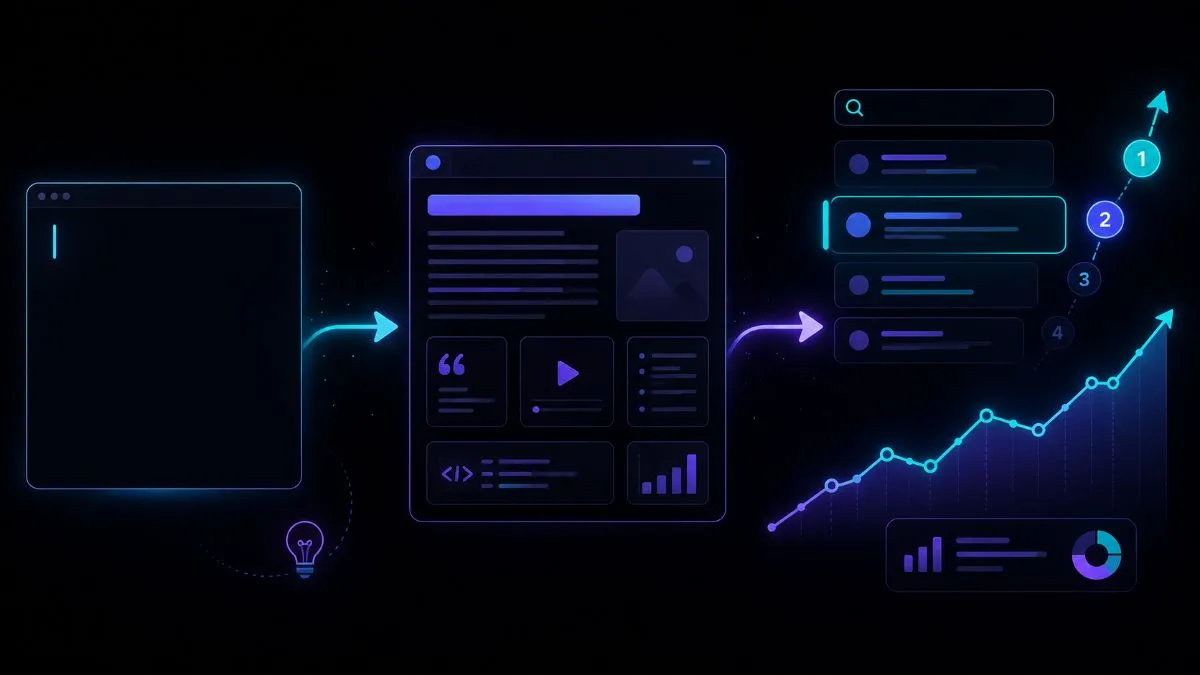
UX design isn't inspiration — it's an iterative process based on research, prototyping and testing. Here's how it works in practice, even for small teams with limited budgets.
Before designing any interface, understand who the users are and what they really want. Methods: qualitative interviews (5–8 people are enough to identify the main patterns), analysis of existing analytics (where do users drop off? Which path do they follow?), heatmaps and session recordings with tools such as Hotjar or Microsoft Clarity (free). Research doesn't have to be expensive to be valuable — even three 30-minute interviews with real users reveal problems that months of desk design would never have found.
Before designing pages, define the structure: which sections exist, what they're called and how they connect. Card sorting (asking users to group content into categories that make sense to them) often reveals that a structure that seems obvious to whoever designed the site is incomprehensible to someone using it for the first time. Information architecture is the foundation — building beautiful pages on the wrong structure is a costly mistake to fix later.
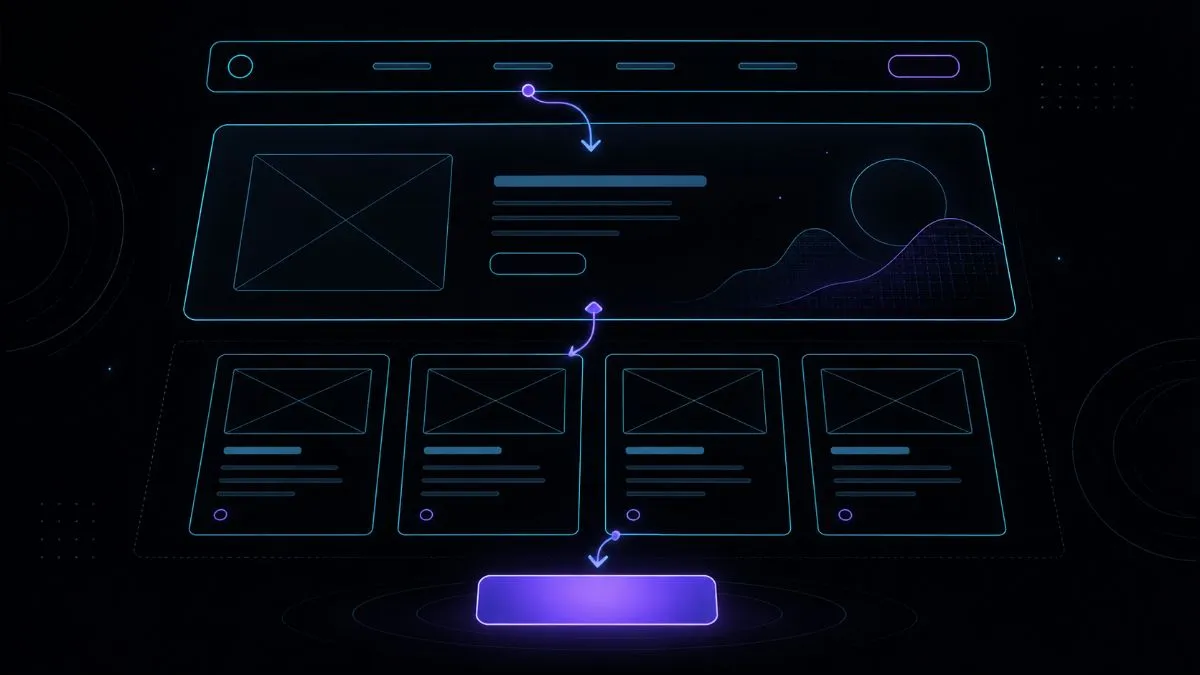
Wireframes are black-and-white sketches of page structure — without real colours, fonts or images. They let you solve structural problems before investing hours in visual design. Tools: Figma (the professional standard), Balsamiq (for quick, deliberately "rough" wireframes that avoid superficial feedback on visuals), even pen and paper for the first iterations. An interactive prototype (clickable linked pages) lets you test entire flows with users before writing a single line of code.
Usability testing is the most valuable check in UX: watching real users use the product and identifying where they struggle. You don't need a lab — 5 users, Zoom and permission to record the screen are enough. Give users a task to complete ("book a consultation", "find the price of the Pro plan") without helping them, and watch where they get stuck, where they hesitate, where they choose the wrong path. Every 30-minute session reveals 3–5 problems the team hadn't spotted.
UX design and conversion: the patterns that work
Some UX patterns have a documented, measurable impact on conversion. They aren't manipulative psychological tricks — they're design that reduces friction along the path to a goal the user already wants to reach.
UX mistakes that sink conversions
UX tools
The ecosystem of UX tools has grown enormously in recent years. Here are the most relevant for each stage of the process.
The industry standard for wireframes, design and interactive prototyping. The free version covers most use cases; the Professional plan (€12/month per editor) adds advanced collaboration and shared libraries. The Figma community offers free UX templates for almost every kind of product.
Hotjar offers heatmaps, session recordings, surveys and funnels — with a generous free plan of up to 35 session recordings a day. Microsoft Clarity is completely free and offers unlimited heatmaps and session recordings. Both reveal how real users interact with the site — essential for identifying UX problems that traditional analytics don't show. See the official guidelines from Nielsen Norman Group, the global reference for UX research.
They let you run remote usability tests on Figma prototypes, collecting quantitative data (completion rate, time on task, errors) and qualitative data (screen recordings, comments). Useful for testing interfaces before development or comparing two design variants. Maze has a free plan for small tests; professional plans start at €25/month.
UX and visual identity: where they meet
UX doesn't exist in a vacuum — it's inseparably intertwined with the brand's visual identity. Great UX on a site with a weak visual identity converts less than it could. A strong visual identity on an interface with poor UX is penalised every time a user gets stuck or lost. For a digital brand that wants to perform at its best, UX and visual identity must be designed together — not in separate silos. If you're building your brand's visual identity, read the guide on how to create a professional visual identity.
I analyse your existing interface, identify the friction points that lower conversions and propose concrete improvements with an estimate of their impact. Explore the Web App service or contact me for a UX consultation.
If you want to apply this to your own project, take a look at my website design and development service: clear prices from €300, a free quote and a reply within 24 hours.